OneDrive
OneDrive is a cloud storage service from Microsoft that is part of the Office 365 suite. It lets you store files online and access them from any device with an internet connection.
Key Functions
1. Upload and Save Files and Folders to OneDrive
Note
This Quick Start is for OneDrive for home and personal accounts. For work and school accounts, use OneDrive in your browser.
Use OneDrive in your browser
- Sign in to office.com
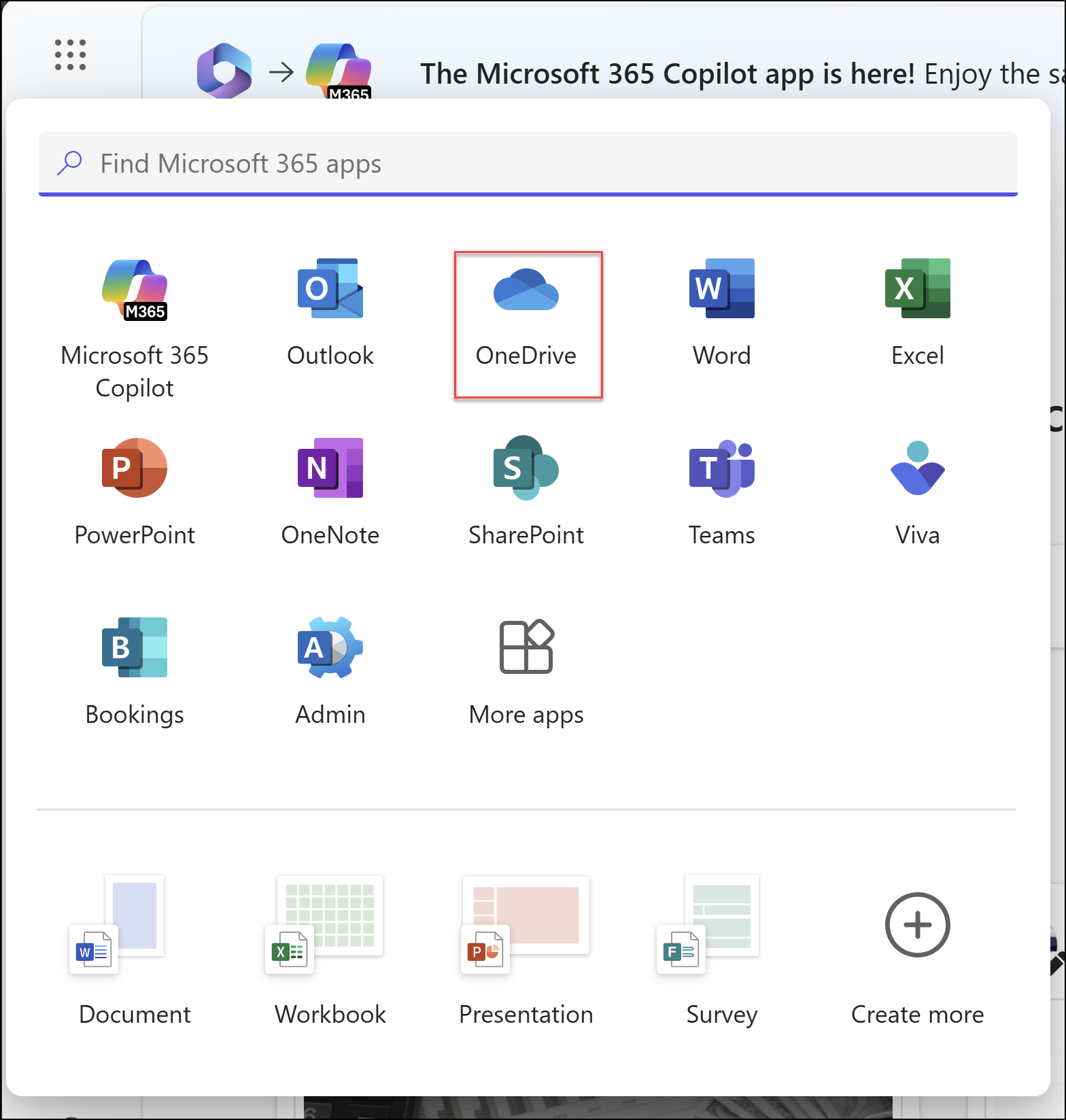
- Select the app launcher icon, then select OneDrive
- Pick a file or folder by selecting the circle in the upper corner, then select a command at the top of the page
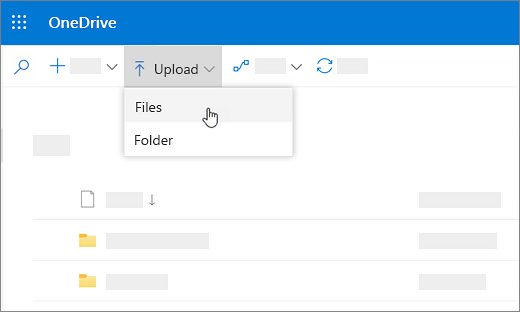
Upload files or folders to OneDrive
You can store over 300 types of files on OneDrive.
With Microsoft Edge or Google Chrome:
- Select Add new > Files upload or Folder upload > Folder
- Select the files or folder you want to upload
- Select Open or Select Folder
With other browsers:
- Select Upload, select the files, and select Open
- If you don't see Upload > Folder, create a folder first, then upload files to it
Tip
If you have the OneDrive sync app installed, you can also upload via File Explorer by dragging files to OneDrive in the Navigation pane.
Save a file to OneDrive
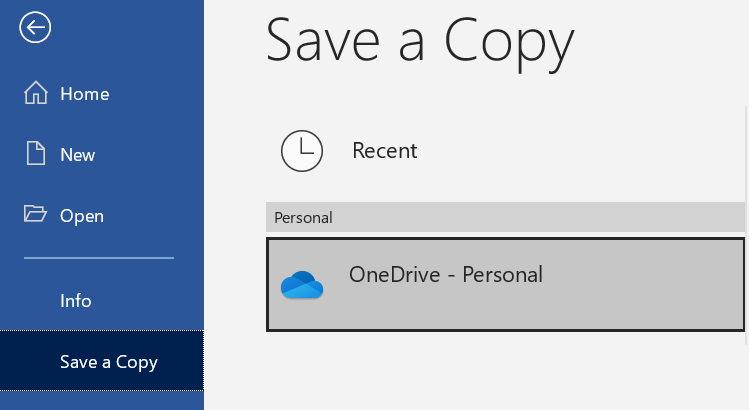
- Select File > Save a Copy > OneDrive - Personal
- Enter a file name
- To save to another folder, select Browse and choose the folder
- Select Save
2. Sharing Files and Folders
- Navigate to the file or folder in OneDrive
- Right-click and select Share
- Enter the email addresses of people to share with
- Choose permissions (view or edit)
- Click Send to share via email, or Copy link for a shareable link
3. Collaborating on Documents
- Open the document from OneDrive
- Ensure it is shared with your collaborators
- Collaborators can open and edit; you'll see their cursor and changes in real time
4. Syncing Files with Your Devices
- Download and install the OneDrive app (Windows or Mac)
- Sign in with your Microsoft account
- Choose which folders to sync; the app keeps them in sync across devices
5. Accessing Files from Anywhere
- Install the OneDrive app (iOS, Android, Windows, or Mac)
- Sign in with your Microsoft account
- Access and manage files from the app on any device